
Chat Basics
Key Takeaways
Use agent mode to enable GitHub Copilot to access specialized tools and take actions on your behalf with ENVI and IDL.
Requirements:
Agent mode enabled (hexagon icon)
Claude Sonnet recommended (4.5 or 4.6 at the time of writing this)
MCP tools visible in tool list
Creating a New Chat
Access the chat interface from the header bar in VSCode. Click the chat-bubble icon to view past conversations or start a new one.
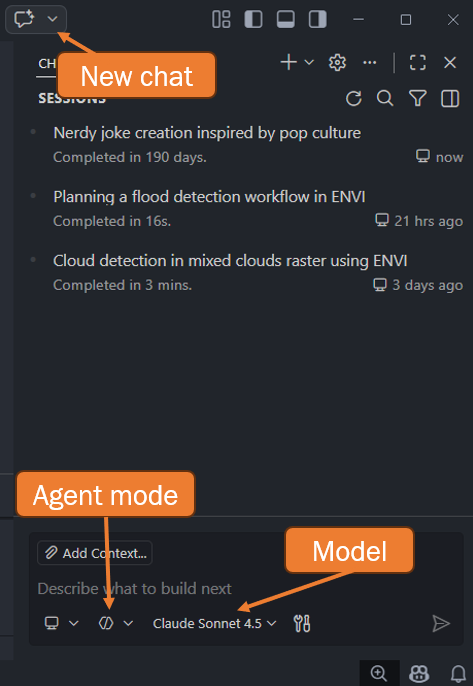
Important Elements:
- Mode indicator: The hexagon icon shows you're in agent mode (required for IDL/ENVI)
- Model selection: We recommend Claude Sonnet 4.5, which was used for all testing and development
Viewing Available Tools
Once in agent mode, explore the MCP tools available to GitHub Copilot. This view confirms the extension is properly configured and shows what actions the LLM can perform when you ask questions.
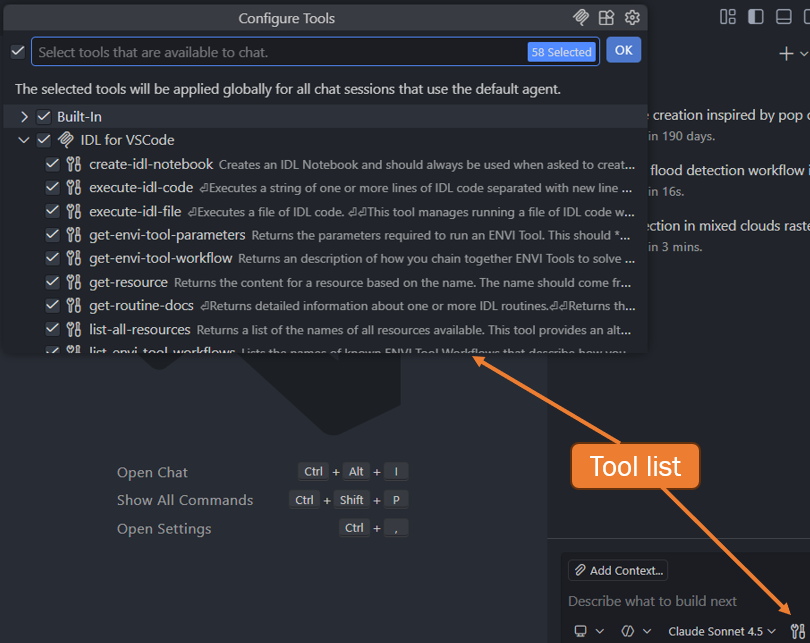
If you don't see "IDL for VSCode" in the list, this indicates a potential configuration issue that needs attention.
Approving Tool Execution
When GitHub Copilot attempts to run a tool in agent mode, you can approve or deny the action. For frequently used tools like documentation searches, consider setting them to always approve to streamline your workflow.
You can review tool inputs and outputs to understand how they work and decide which tools you're comfortable running automatically. Use your judgment based on the tool's purpose and the data it accesses.